 puh.gg
Upload and share files
Upload images and videos, sort them in folders and share them with a short link and a Discord embed.
Image host
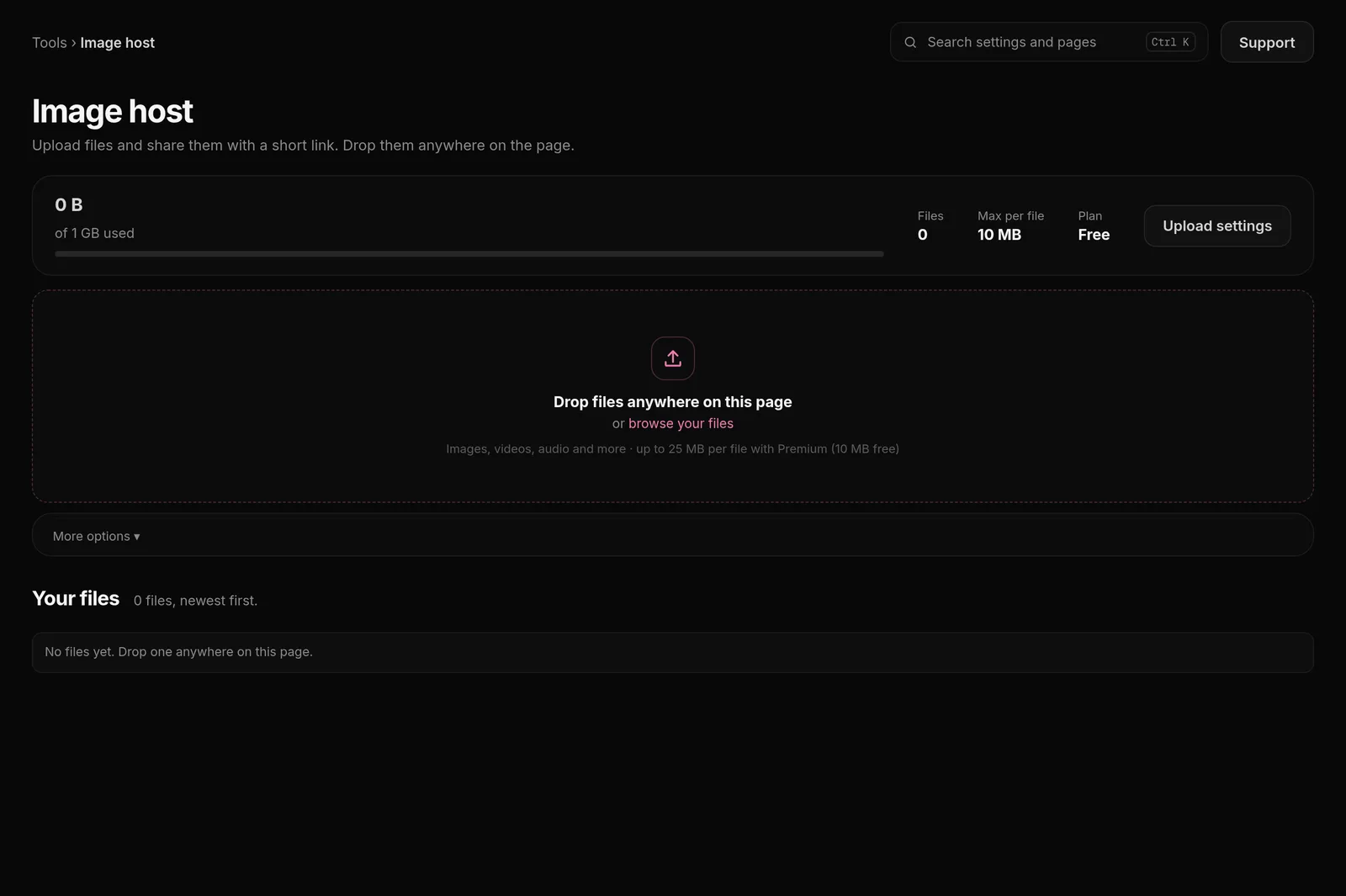
- Open Image host in the dashboard menu.
- In Upload, pick a file. Optional: choose a Folder and the options below.
- After the upload, copy the share link and send it anywhere.
Supported files: PNG, JPEG, GIF, WebP, SVG, MP4 and WebM. AVIF, HEIC (iPhone photos), BMP and TIFF work too and are stored as WebP, so they open everywhere. How big a file can be depends on your plan, see Image Host plans.
Upload options
| Option | What it does |
|---|---|
| Auto-delete | Deletes the file by itself after 1, 7 or 30 days. |
| Anonymous upload | Hides your name on the share page and in the embed. |
| Hide file extension | The link ends with a short code instead of the file name. |
| Folder | Puts the file straight into one of your folders. |
| Masked link | Also creates an invisible Markdown link, so Discord shows only the embed. |
| Fake text mode | The link preview shows decoy text instead of the file. |
Set your usual choices once in Image host, Upload settings, Settings, Upload defaults. They apply to every new upload, also from ShareX.
The Discord embed
In Settings, Discord embed you set the color, title and description of the preview Discord shows for your links. These variables are filled in for each file: {filename}, {size}, {date}, {time}, {type} and {uploader}.
Gallery and folders
All files are under Your files on the Image host page. Create folders there, move files into them and search or filter. Upload settings, Overview shows your storage use and uploads over time.
| Tab | What it is for |
|---|---|
| Overview | Total uploads, folders, storage used, uploads over time and your top folders. |
| Gallery | Every file, with folders, search and filters. Upload new files here. |
| Pastes | Text and Markdown under a short link. |
| Shortener | Short links for long addresses. |
| API keys | Keys and ready configs for ShareX, Flameshot and scripts. |
| Settings | Upload defaults, upload domain and the Discord embed. |
Delete a file
Delete files under Your files, one by one or several at once after selecting them. A deleted file stops working at once, also for links you shared before, and its space is free again. Files with Auto-delete disappear by themselves.