 puh.gg
Profile picture and banner
Upload your avatar and a banner, or use your Discord avatar with its decoration.
Profile picture
Profile → You
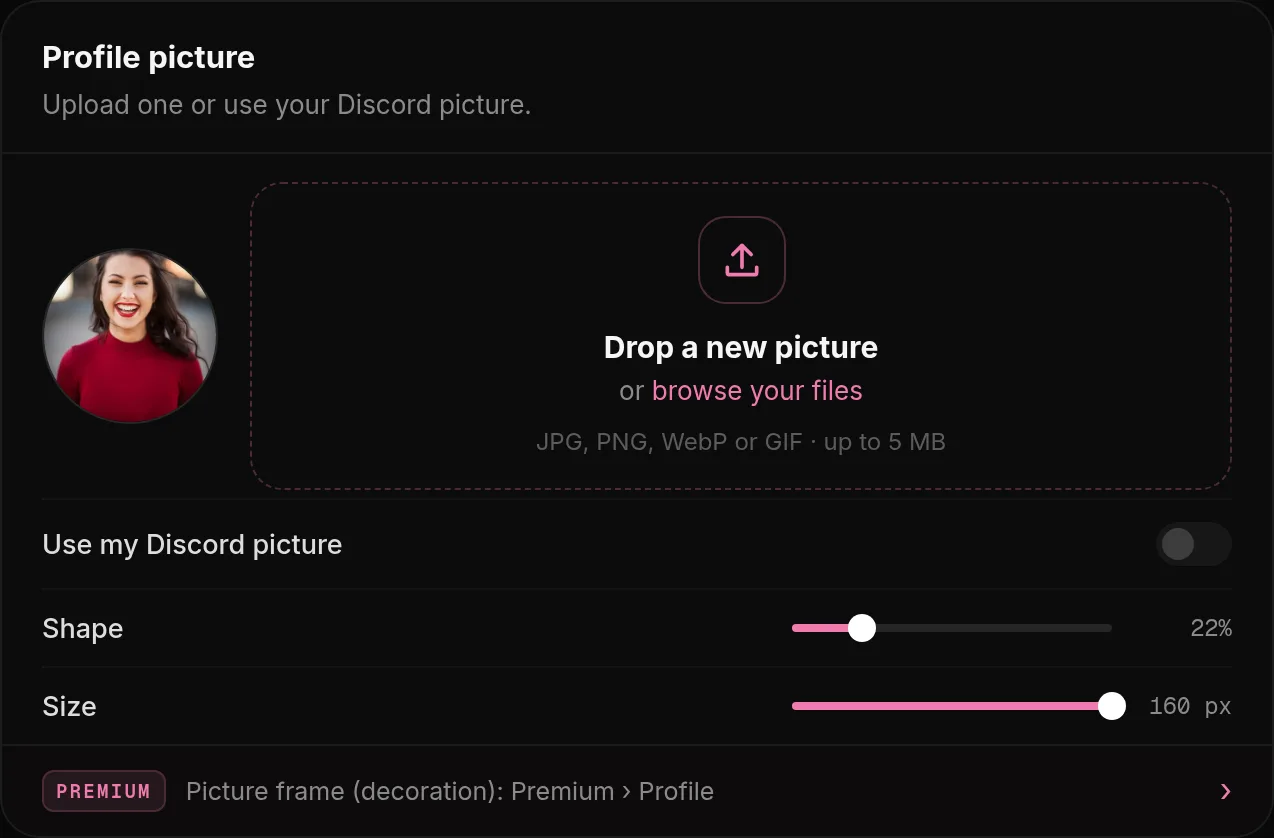
- Open Profile.
- Under Profile picture, drop a file or click the field: any image up to 5 MB. Animated GIFs work.
Without a profile picture, your page shows the Puh ghost. Clicking your picture on your page copies your account ID (UID).
Use your Discord avatar
Profile → You
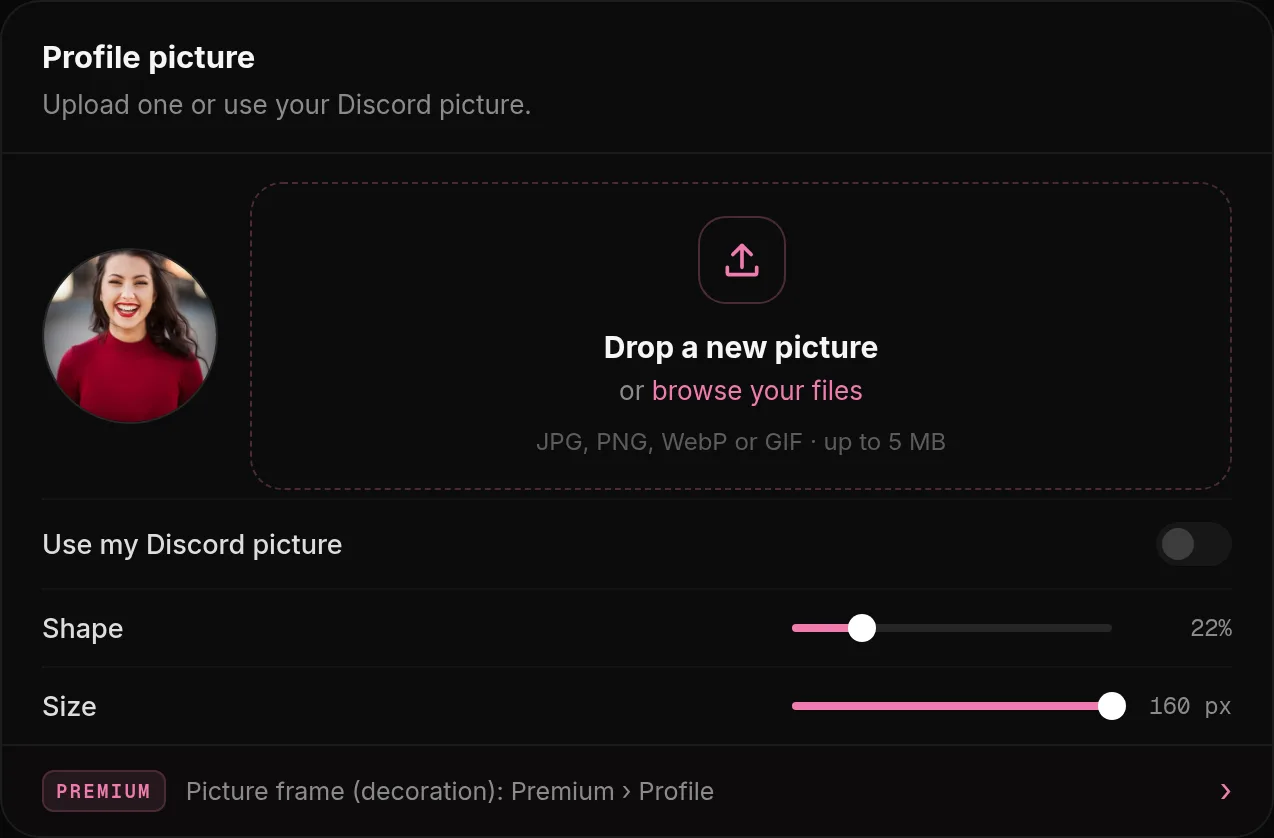
Connect Discord first (see Connect Discord). Then open Profile, Profile picture and turn on Use my Discord picture. Use my Discord decoration also shows the decoration you use on Discord. When you change your picture on Discord, your page follows.
Shape and size
The Shape (square to circle) and Size of your picture are set in Profile, Profile picture.
Avatar decoration (Premium)
Open Premium & shop, Avatar decoration. Pick one of more than 170 real Discord decorations, some of them animated, and search them by name. Or upload your own decoration: any image up to 1 MB, ideally a square PNG or GIF with a transparent middle.
Good sizes
| Picture | Good size | Tip |
|---|---|---|
| Profile picture | 512 x 512 | Square. Keep the face in the middle, the corners may be cut off. |
| Banner | 1500 x 500 | Wide. Keep important parts away from the bottom edge if you use Fade into the card. |
Banner
Upload a banner in Look, Card layout once you picked a layout that shows one, up to 8 MB. It is shown in the Banner, Classic and Links layouts and in Spotlight and Showcase. See Layouts.