 puh.gg
Music, lyrics and the audio player
Add up to 20 songs with title, artist, cover art and lyrics, and choose how the player looks.
Add songs
Music & media → Songs
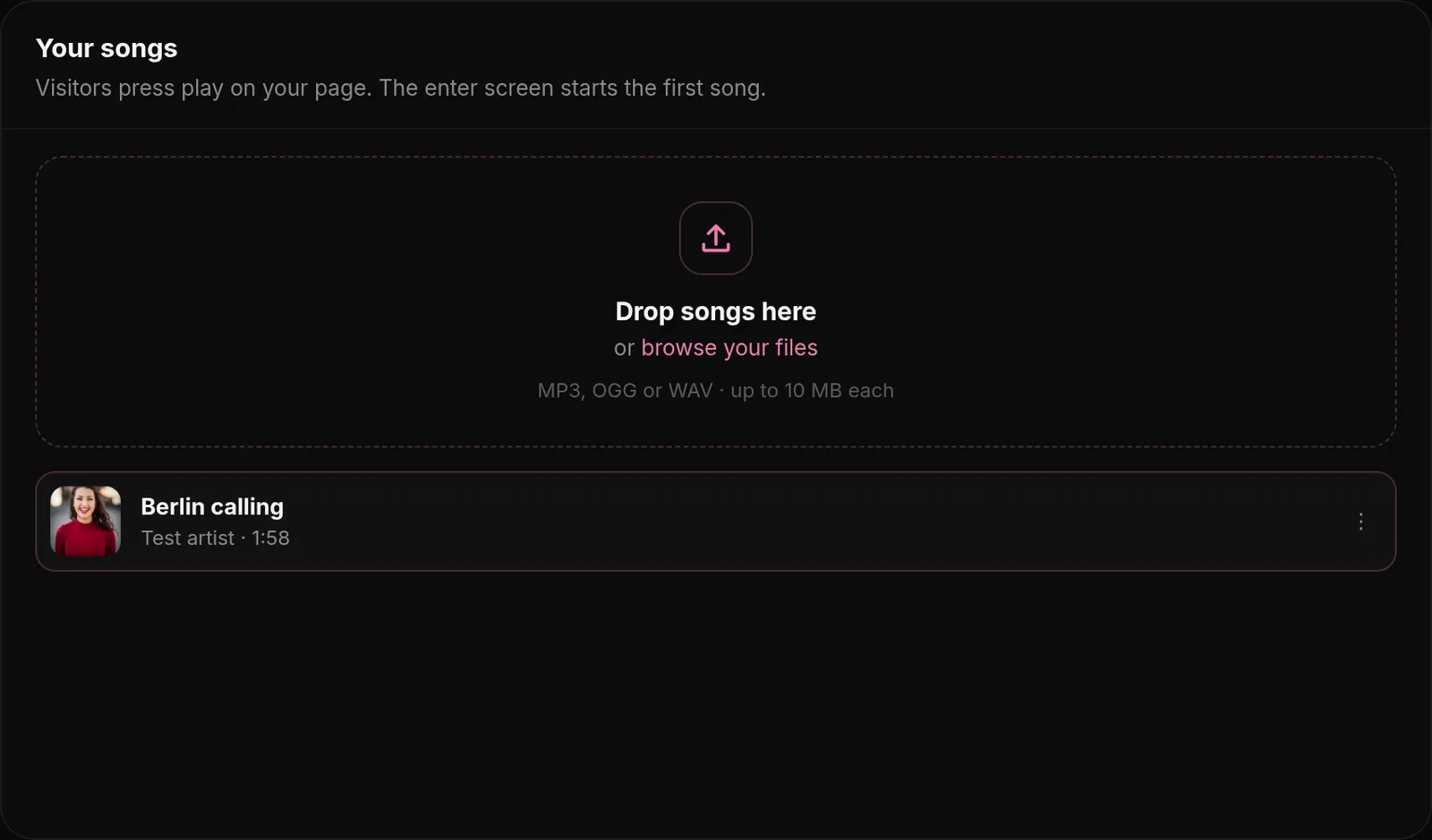
- Open Music & media.
- Under Your songs, drop one or more files or click the field: MP3, OGG or WAV, up to 10 MB each.
- Select a song and fill in Song details: title, artist, cover (any image up to 3 MB, square works best) and lyrics.
Title, artist and cover art are taken from the song file when it has them, so many songs need no editing at all.
You can add up to 20 songs. The order in the list is the play order. Move a song by dragging or with the arrows, select it to edit its details and remove it with the bin.
Lyrics
For many known songs the lyrics are added automatically. You can also paste your own. If every line starts with a time like [00:12.30], the lyrics follow the music live in the large player. Without times they are shown as plain text.
Synced lyrics look like this, one line per lyric:
[00:12.30] First line of the song[00:16.85] Second line of the song[00:21.10] And so on
Artist - Title.mp3). Nothing found? Correct the title and artist in Song details and leave the lyrics empty: saving looks them up again. Lyrics can be up to 8,000 characters.How the player looks
Music & media → Player
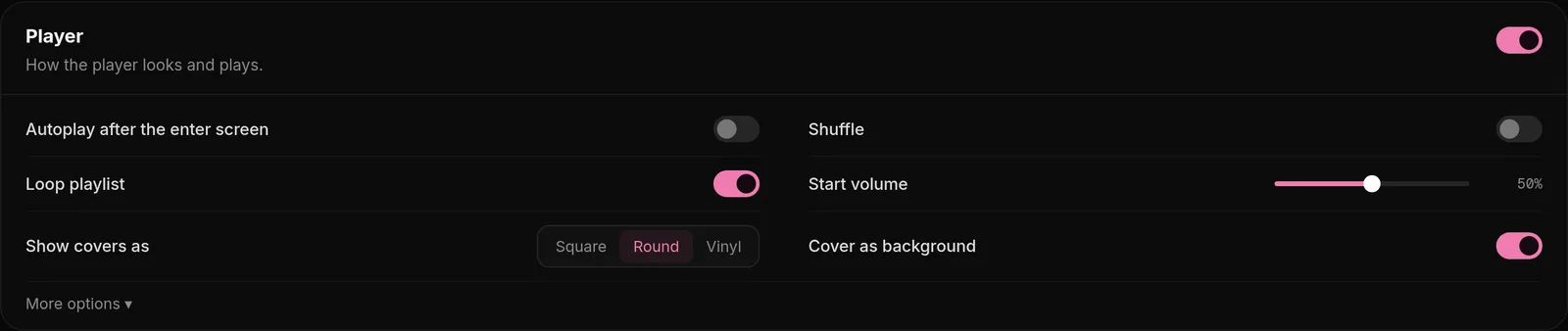
| Setting | What it does |
|---|---|
| Player size | Large with lyrics or Compact. |
| Place | Below the card or In the card. |
| Show covers as | Square, Round or Vinyl, which spins while the song plays. |
| Cover as background | Shows the blurred cover behind the player. |
| Show lyrics (Song details) | Shows the lyrics in the large player. |
| Autoplay after the enter screen | Starts the music as soon as a visitor clicks through the enter screen. |
| Shuffle and Loop playlist | Random order, and start over after the last song. |
| Start volume | How loud the music starts. Visitors can change it. |
| No player background | Removes the card behind the player, so only cover, title and controls stay. |
| Volume control | Shows the volume button. Off: visitors use their device volume. |
Player settings save on their own, and songs as soon as they are uploaded.