 puh.gg
Widgets
Live tiles for Discord, Spotify, Steam, GitHub, games and more, in your card or below it.
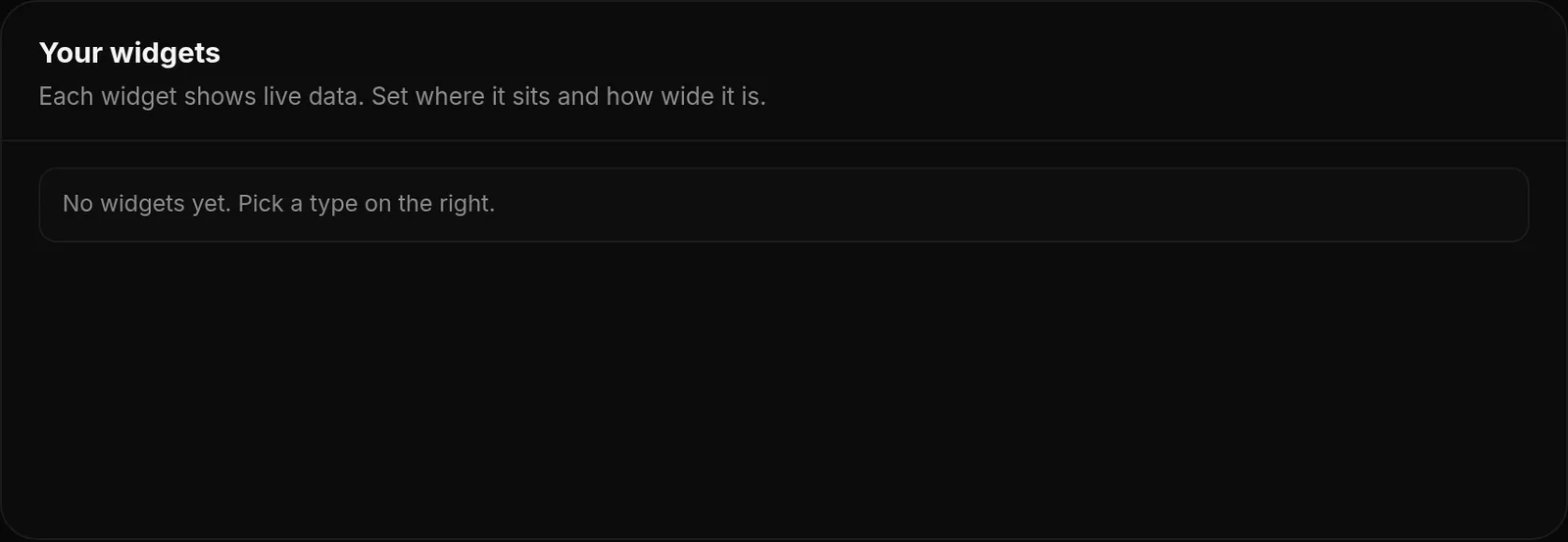
- Open Widgets & sections and pick a widget under Add a widget.
- Fill in what it asks for (see the table).
- Choose Half or Full row, and In the card or Below the card. It saves on its own.
You can have four widgets in the card and four below it. A Half widget without a second one next to it fills the whole row.
What each widget needs
Widgets & sections → Widgets
| Widget | Enter |
|---|---|
| Discord server | An invite link, for example discord.gg/puhbio |
| Spotify | A track, album or playlist link; visitors can play a 30 second preview |
| YouTube | A video link |
| Twitch, Kick | Your channel name |
| Last.fm, stats.fm | Your username |
| Steam | Your profile link, custom URL name or SteamID64 |
| Valorant | Your Riot ID, for example Name#TAG |
| Overwatch | Your BattleTag; your career profile must be public |
| Minecraft | A player name, or a server like play.hypixel.net |
| Roblox, Fortnite, Xbox, Genshin | Your username, Epic name, gamertag or UID |
| GitHub, Modrinth, chess.com, lichess | Your username |
| TikTok, X, Telegram, Pinterest | Your username, without @ |
| Weather | A city, for example Berlin |
| Link card | Any link; puh.gg shows its picture and title |
Widget colors
Widgets & sections → Widget style
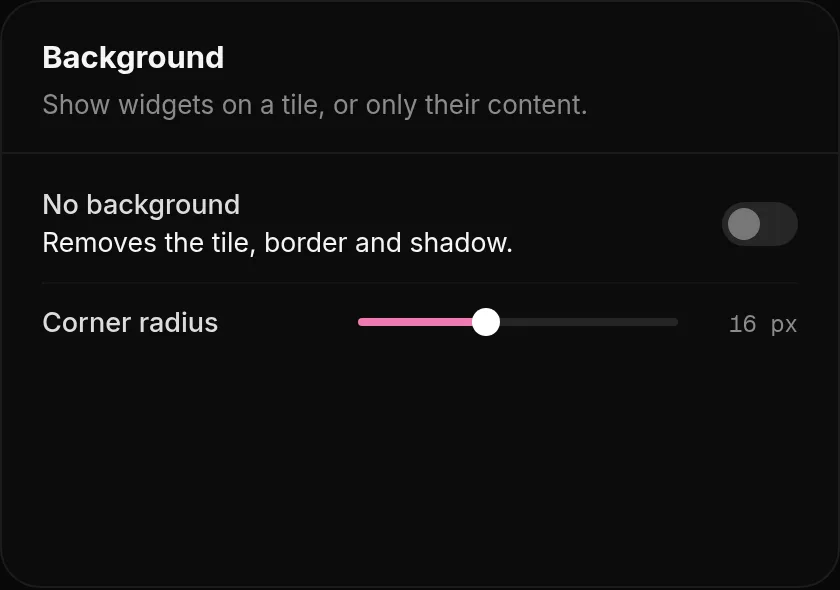
Under Widget style give your widgets their own colors, border and corner radius instead of your page colors.
Background: turn on No background to show only the content of each widget, without a tile behind it. It looks great on Minimal and Fullscreen pages.
Widget empty or not loading? Check the name for typos and make sure your profile on that site is public. Some sites update their data only every few minutes.
Was this helpful?Updated Oct 22, 2026